

Once you have created a workspace, you can connect your existing projects to it. This groups your projects together and makes them easier to manage.
How to connect a project to a workspace
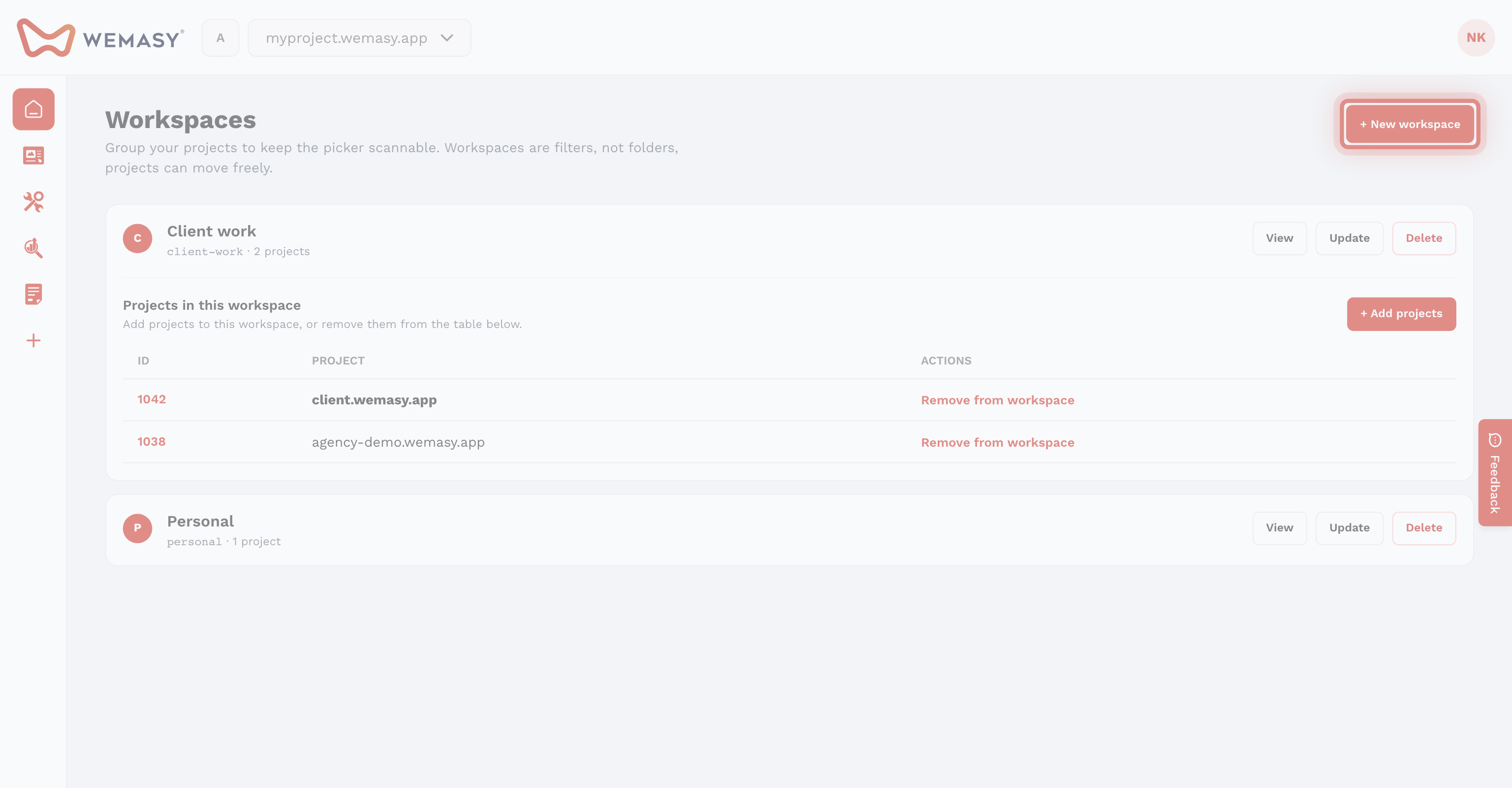
Follow these steps to connect a project to a workspace:
- Click your avatar or initials in the top right corner of the screen.
- Select Workspaces from the account menu.
- Open the workspace you want to add a project to.
- Click the option to add or connect a project.
- Select the project you want to connect.
- Confirm to add the project to the workspace.
You can repeat this process to add multiple projects to the same workspace.
Benefits of connecting projects
Grouping projects inside a workspace gives you several advantages:
- Centralized overview — See all related projects in one place.
- Faster navigation — Switch between grouped projects without searching through your full project list.
- Logical structure — Keep client work, brand projects, or department sites neatly organized.
- Reduced clutter — Avoid a long flat list of unrelated projects on your dashboard.
Removing a project from a workspace
If you no longer want a project to be part of a workspace, you will be able to disconnect it. Removing a project from a workspace does not delete the project. It simply removes the grouping. The project will still exist in your account and remain fully accessible.
Moving a project to a different workspace
You can move a project from one workspace to another. This is useful if your organizational needs change over time. For example, you might move a project from one client workspace to another after a handover.
Things to keep in mind
- A project can belong to one workspace at a time.
- Connecting a project to a workspace does not change the project itself. All settings, data, and configurations remain the same.
- You do not have to connect every project to a workspace. Projects can remain standalone if you prefer.