

Marking a project as a theme turns it into a design that you can version and offer in the WEMASY theme marketplace. Use it when you build a design to reuse, for example as a designer or agency. For a normal website you do not need this option.
What changes when a project is a theme
- The project switcher shows a version button next to the project, so you can work on separate theme versions.
- The top bar offers View Theme to preview the theme in a new tab, and the publish button becomes Manage Versions, where you manage your theme versions and submissions.
- The Domain Configuration section only asks for a Domain Name.
- In the project switcher search, the project carries a Theme label.
A theme version only appears in the marketplace after you submit it with Submit for Approval and WEMASY approves it. Until then the status shows Pending Approval.
How to mark a project as a theme
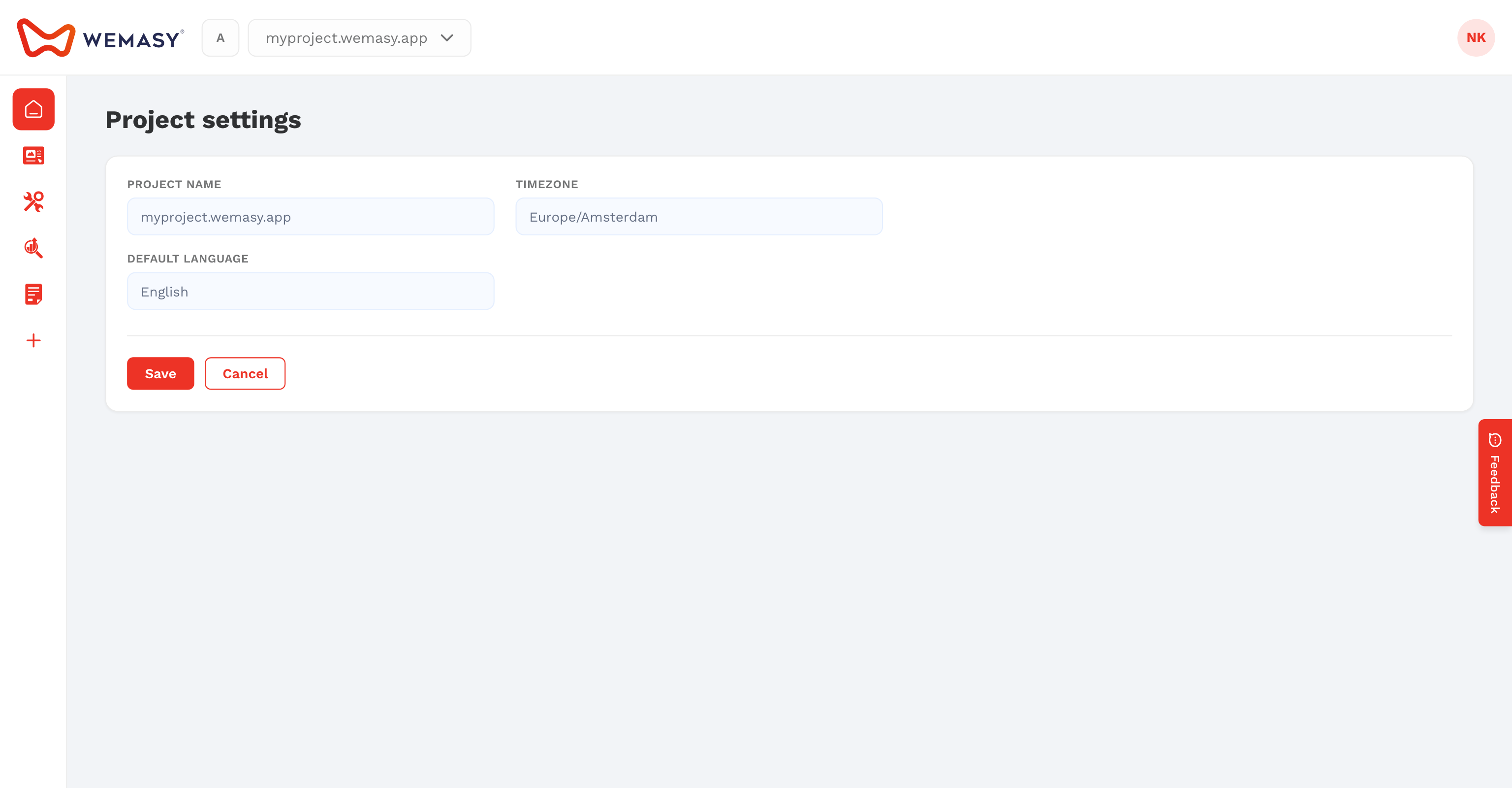
- Open the project you want to use as a theme.
- Click the gear icon next to the project switcher.
- Open the General tab.
- Scroll down to Danger Zone.
- Switch on This is a theme.
The change is saved right away. Switch it off again to turn the project back into a normal website project.
Who can do this
Only the owner of the project sees the Danger Zone and can mark a project as a theme. Collaborators, also those with full rights, cannot change it.
Before you mark a live website
Do not mark a project that runs your live business website. A theme project is meant as a design source: the publish button is replaced by Manage Versions. Make a separate project for the design instead, and keep your live website as a normal project.
To learn how others install and update themes from the marketplace, see Theme marketplace and Theme version updates.